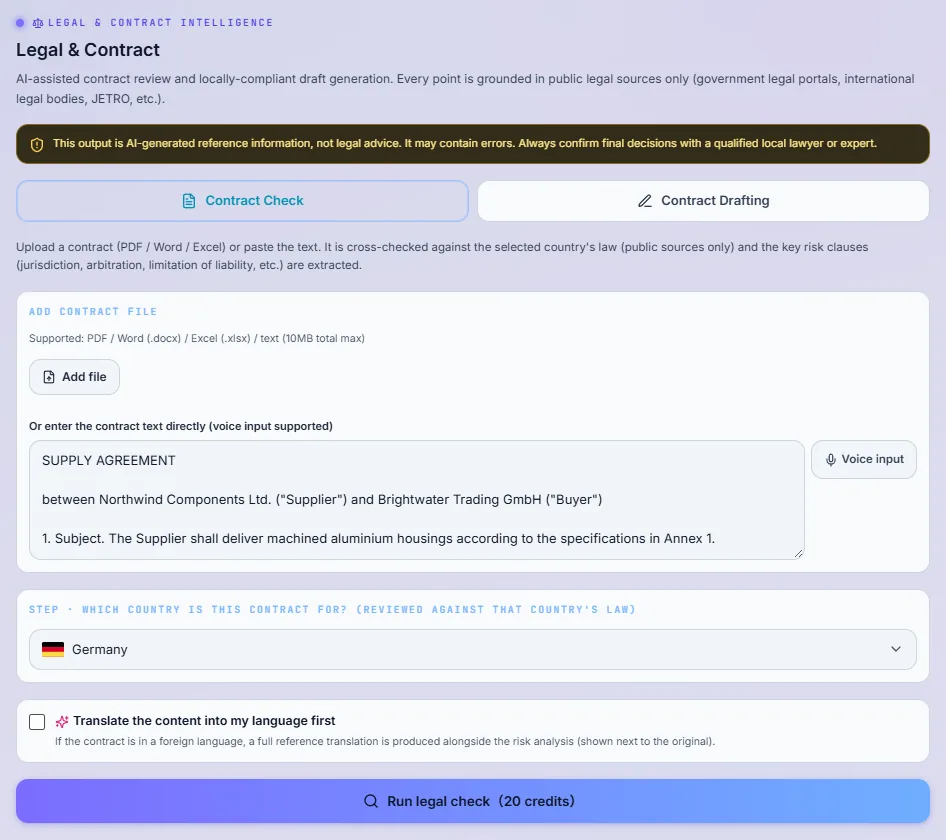
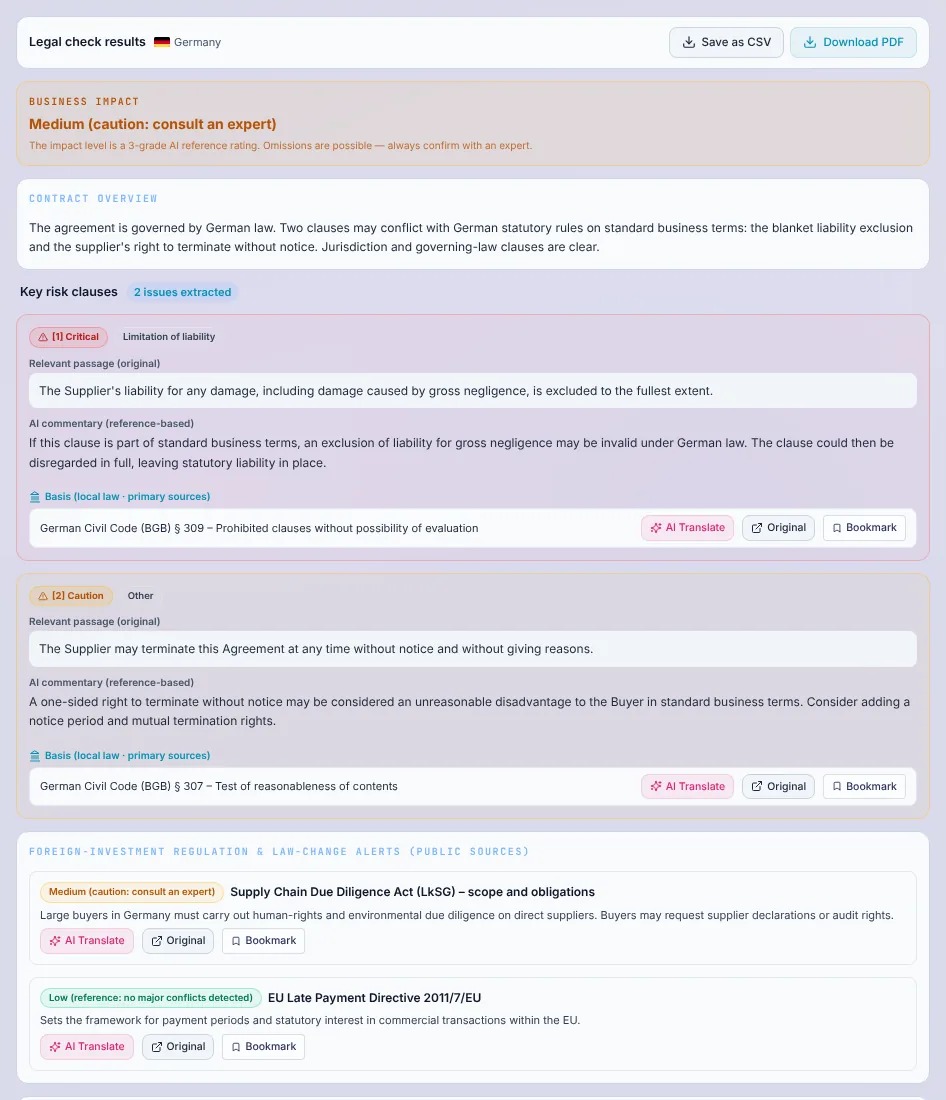
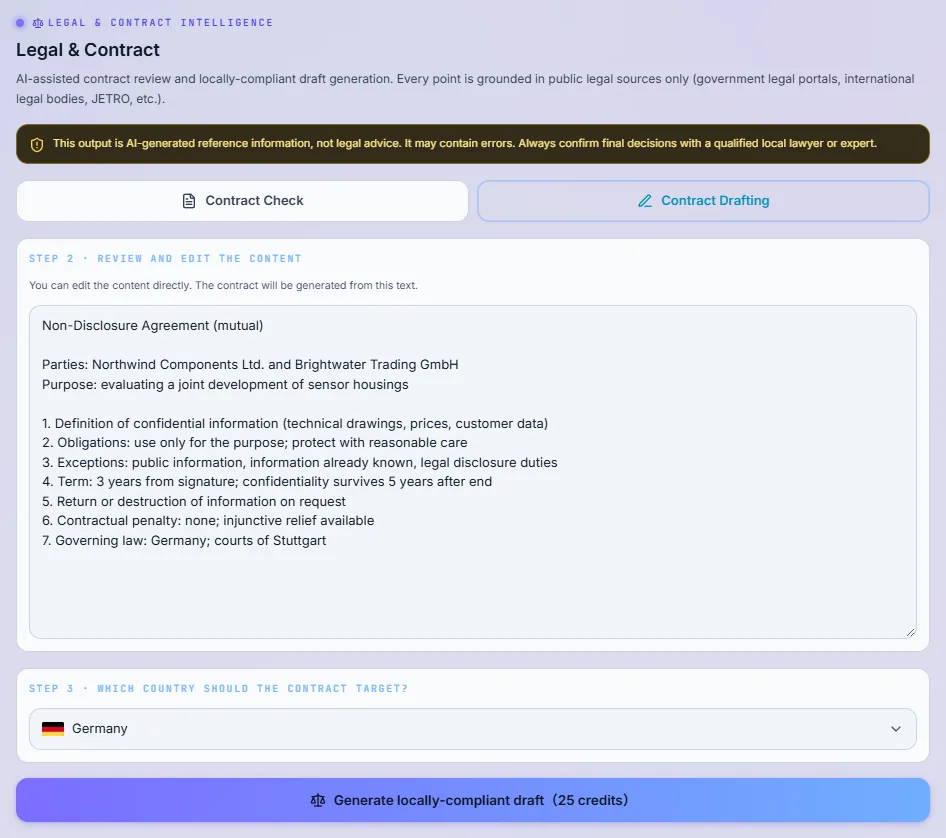
HOW TO USE

How to use Factdock

We have gathered what each search can do, how to use it step by step, what to watch for, and how credits are used, all on one page. Start with the credit rules below, then jump to the search you need.

First: when credits are used

Credits are used only when you run a search, or when you press a translation button yourself. Displaying the app in your language and reading Global Insights do not use credits.

Uses credits

  • Running a search, including its steps such as keyword optimization, per-country scans, loading more results and opening a detailed view. Translation of the results into your language is included in that search.
  • A translation you press yourself: the high-accuracy translation button, translating a passage you select, or reading a scanned document or image so it can be translated.
  • Searches run from your own AI tool through the personal API, at the same price as in the app.

Does not use credits

  • Showing the app's menus, buttons and other fixed text in your language.
  • Reading Global Insights on a paid plan, including the headlines and summaries translated into your language.
  • Opening an ordinary web page in the reader, and viewing the confirmation screen that shows the cost before you run something.
  • Processing that fails on our side: the credits for that run are returned automatically.

WEB INTELLIGENCE

Web Intelligence

What you can do

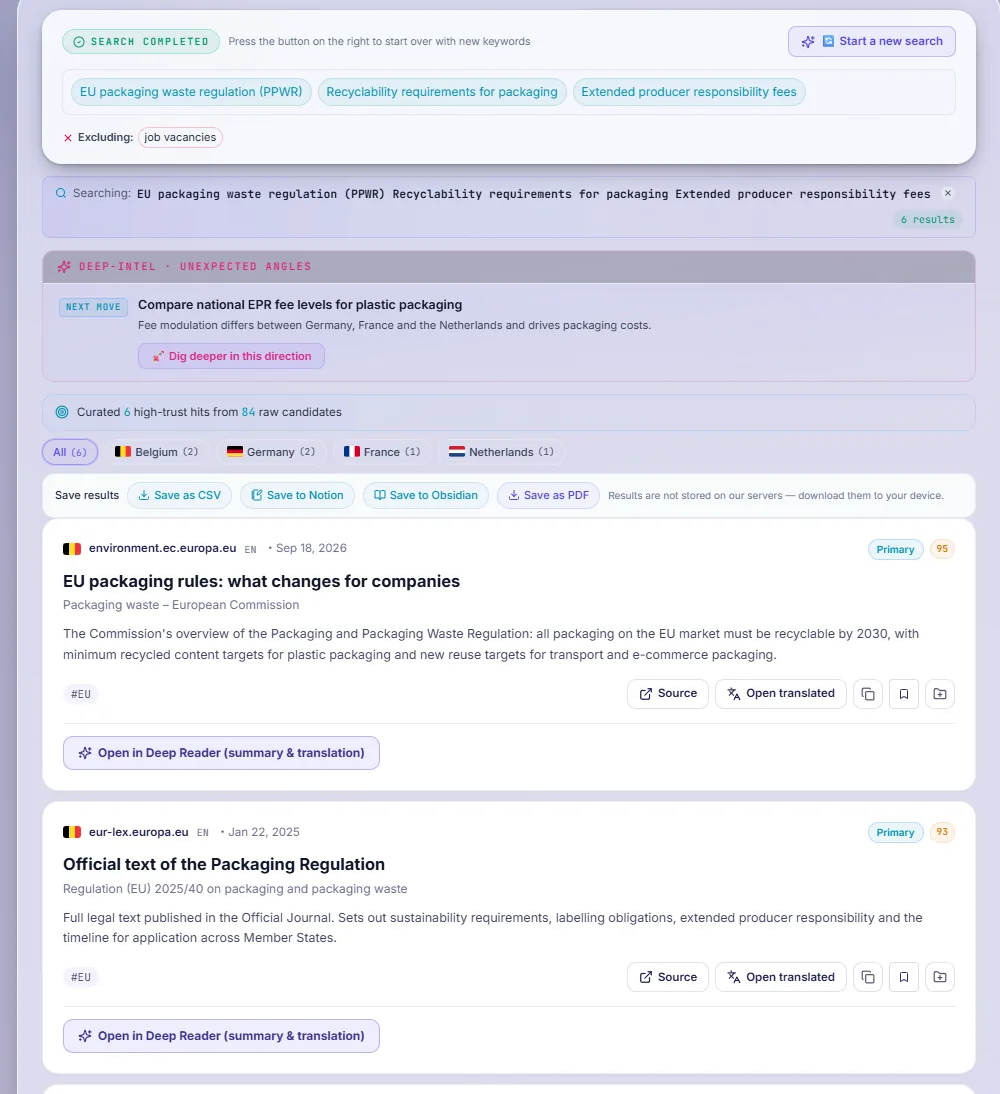
Research a topic across languages and countries at once. Results come back as cards with translated titles and summaries, grouped by source type, with a link to every original page.

How to use it

  1. Step 1

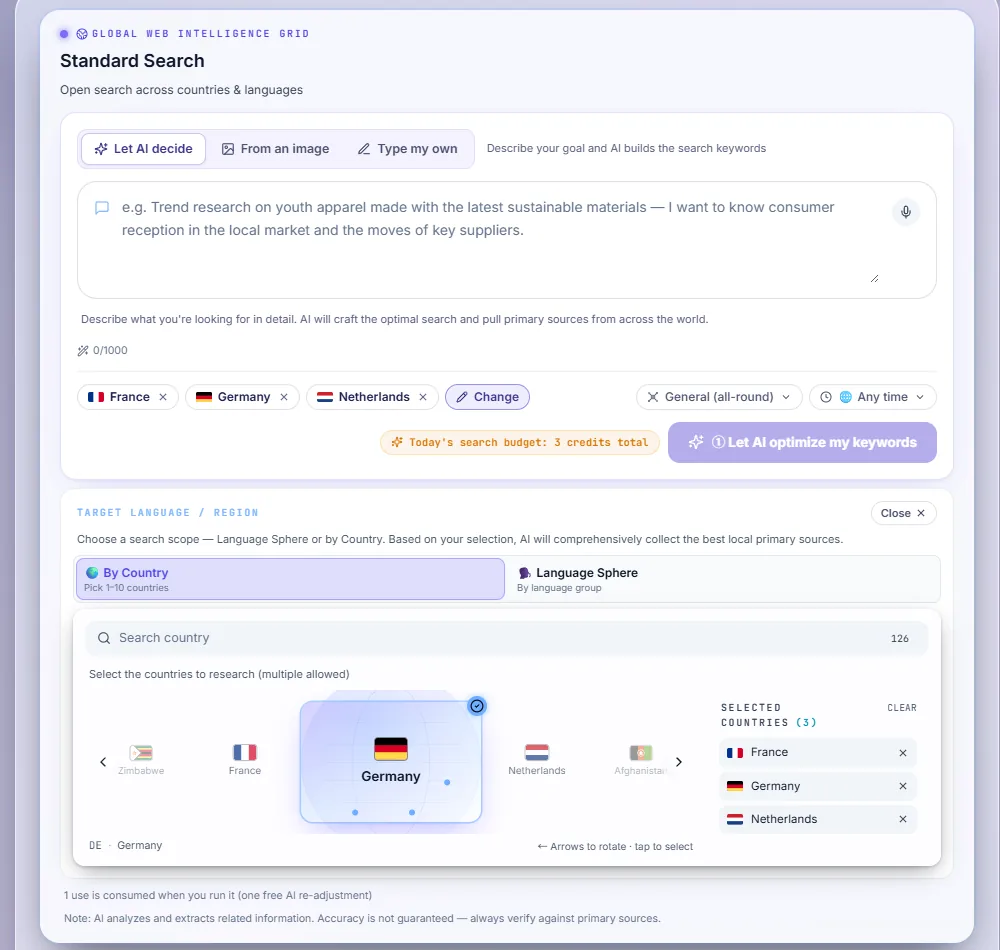
    Choose where to search

    Pick a language sphere, or choose countries (up to 10). Selected countries are searched at the same time.

    Choose where to search
  2. Step 2

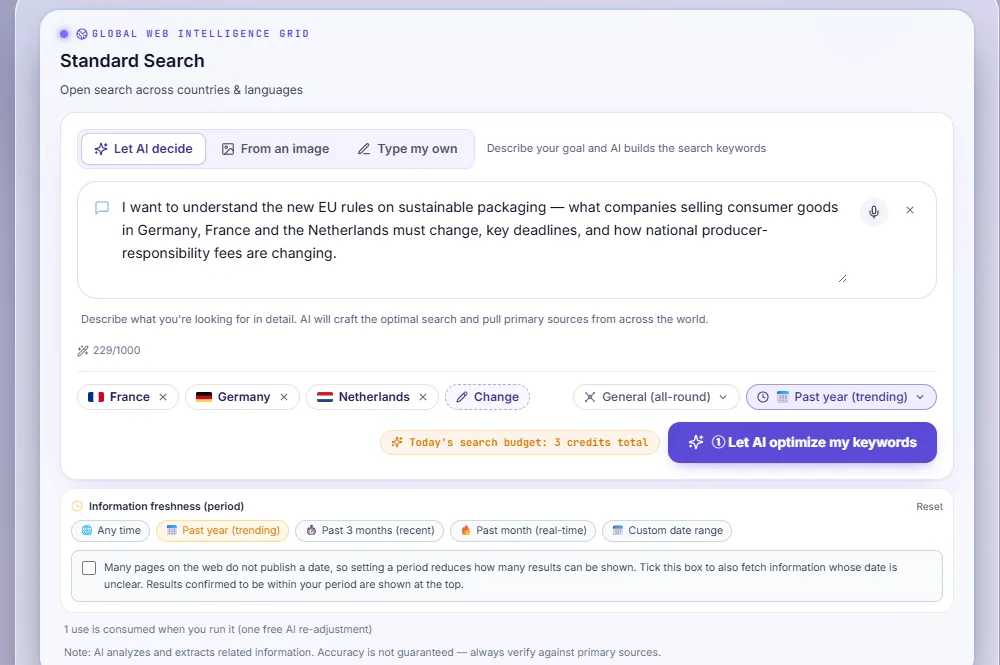
    Set the keywords

    Let the AI turn your goal into keywords, read keywords from an image, or type up to three keywords yourself. You can also set a period and words to exclude.

    Set the keywords
  3. Step 3

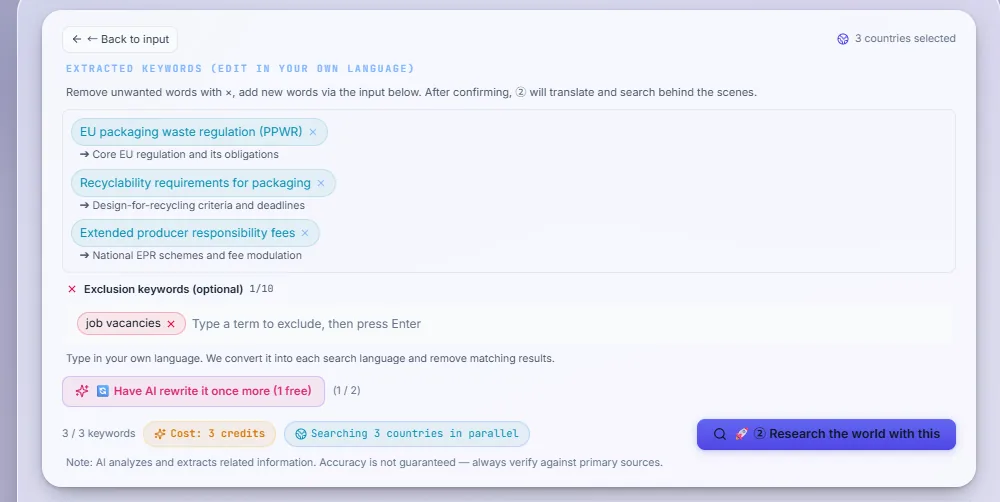
    Check the keywords and run the search

    When the AI proposes keywords, edit them as chips if needed, then run the research.

    Check the keywords and run the search
  4. Step 4

    Read and go further

    Open the original pages, fetch more results, add cards to a report, or dig deeper in a direction you choose.

    Read and go further

Points to note

  • Fetching the next batch of results is available when you search one country or one language sphere.
  • Running the same conditions again is a new search and uses credits again.
  • Results are reference information. Check important points against the original source.

How credits are used

One search is charged once, however many countries you select. When the AI sets the keywords, the charge is made at that step and covers the search that follows. Fetching more results and searches started from a deeper-dig suggestion are charged separately.

Guide range · per query
100–160 credits

ACADEMIC PAPERS

Academic Papers

What you can do

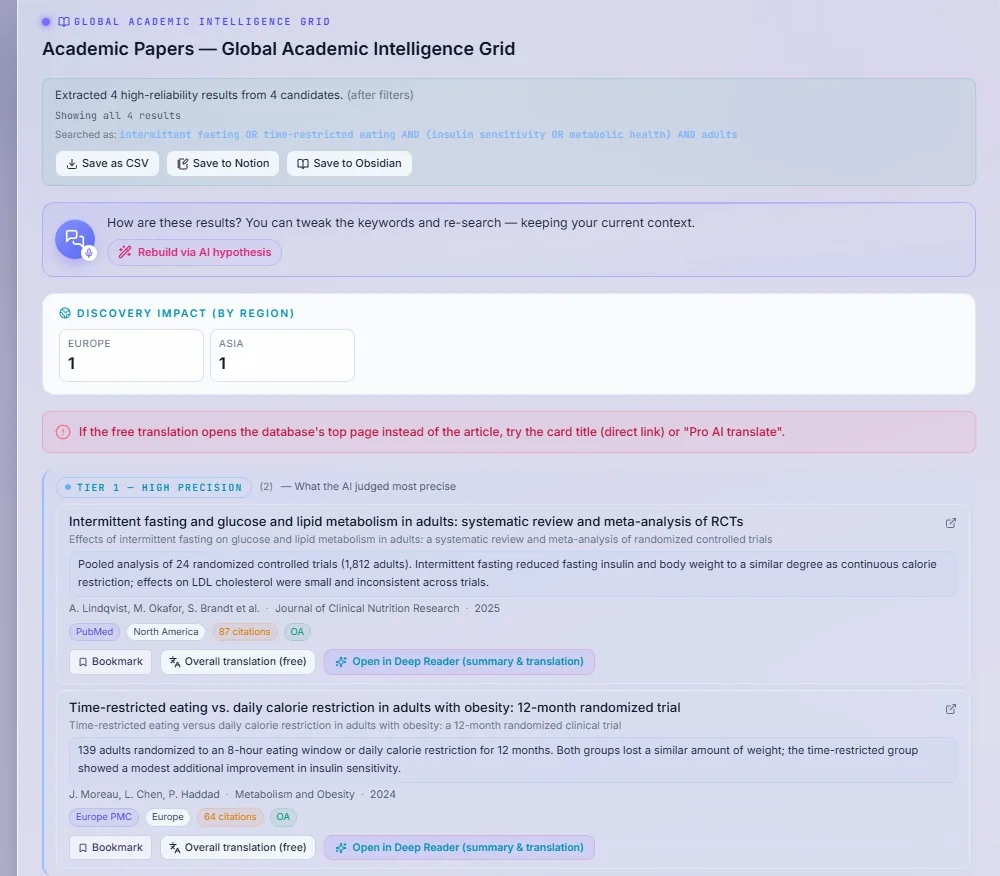
Search scholarly literature across academic databases. Papers are ranked by level of evidence, with translated titles and abstracts and a link to each paper.

How to use it

  1. Step 1

    Describe what you want to find out

    Write your topic (voice input works). You can add a figure or photo if it helps.

    Describe what you want to find out
  2. Step 2

    Let the AI prepare the search

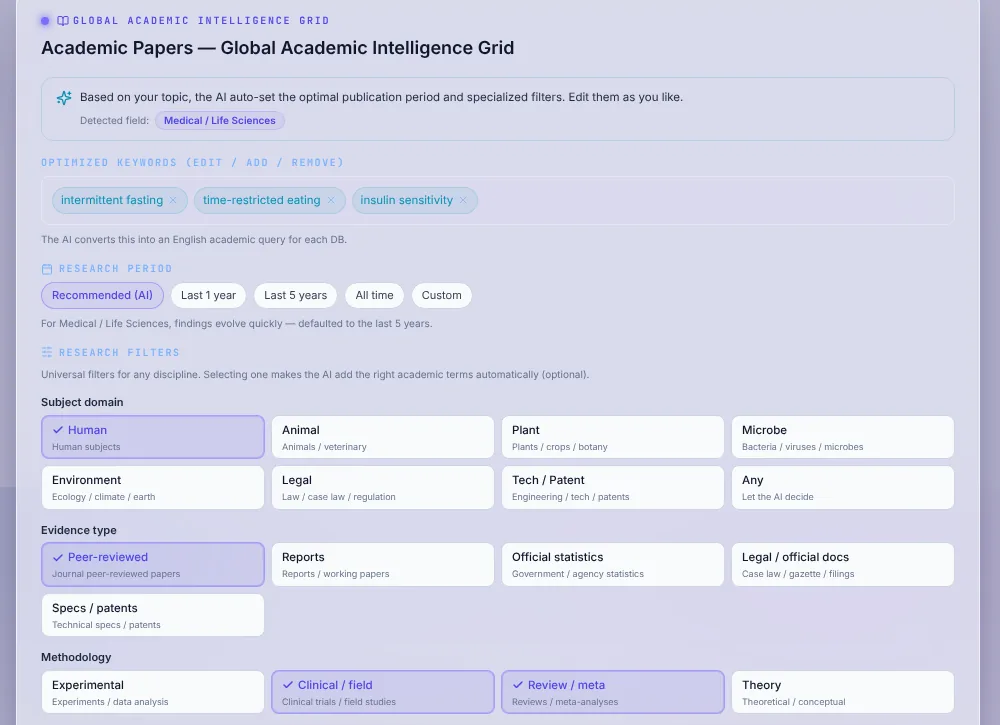
    The AI detects the field and suggests keywords, a period and filters. Choose the databases to use and adjust the filters if needed.

    Let the AI prepare the search
  3. Step 3

    Check the preview and run

    Confirm the search preview, then run the search. Results are grouped by evidence level.

    Check the preview and run
  4. Step 4

    Refine or go deeper

    Load the next set of papers, ask the AI to adjust the search, or rebuild it to test a hypothesis.

    Refine or go deeper

Points to note

  • If a message says the sources could not be reached, the databases were temporarily unavailable. It does not mean there are no matching papers.
  • Keywords in English tend to give the widest coverage.

How credits are used

Each step you run uses credits: the AI preparation, the search, loading more papers, and hypothesis rebuilding. Reading a figure or photo is charged per image.

Guide range · per query
100–200 credits

PATENT INSIGHT CONCIERGE

Patent Insight Concierge

What you can do

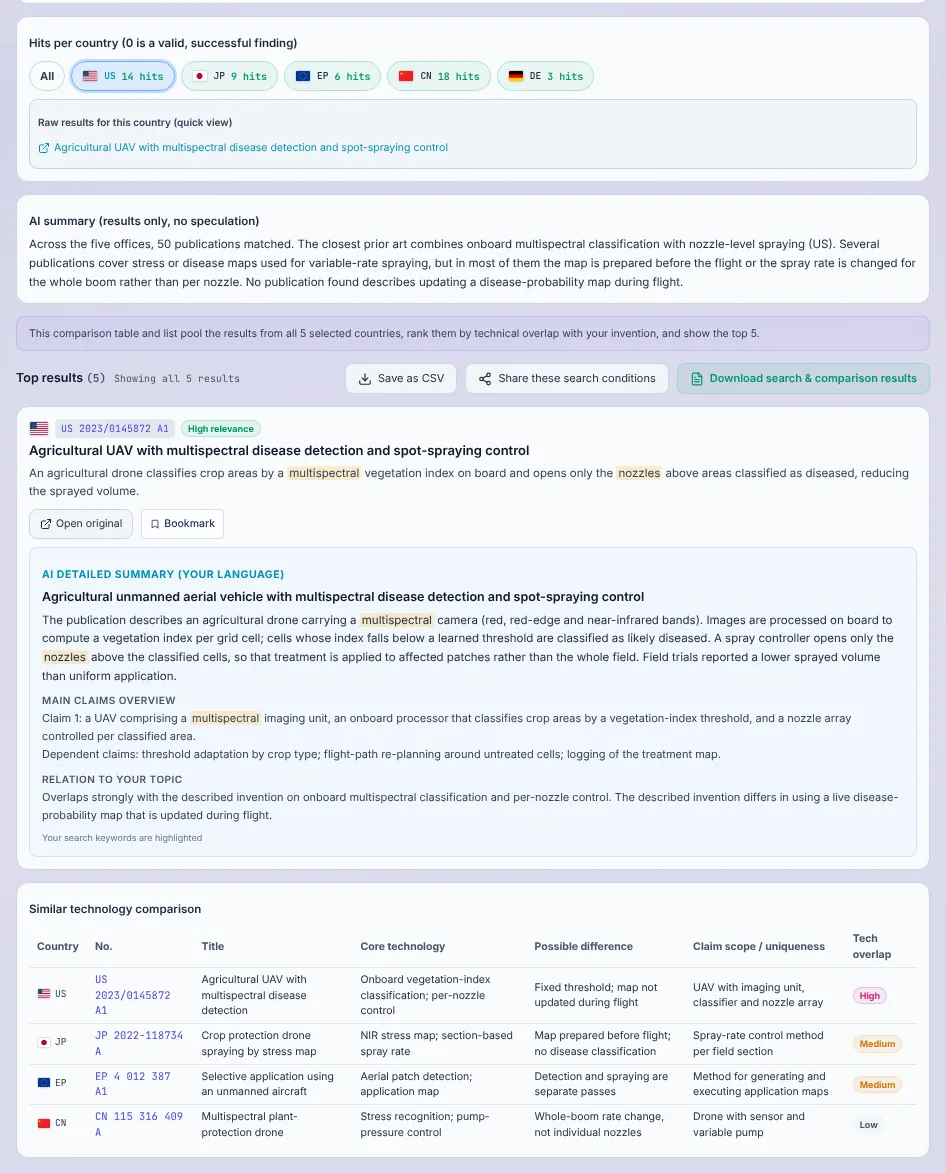
Search patents at the patent offices you choose. We build a search query for each office from your description, and show hits per country, a comparison table and a translated detail view.

How to use it

  1. Step 1

    Describe the invention

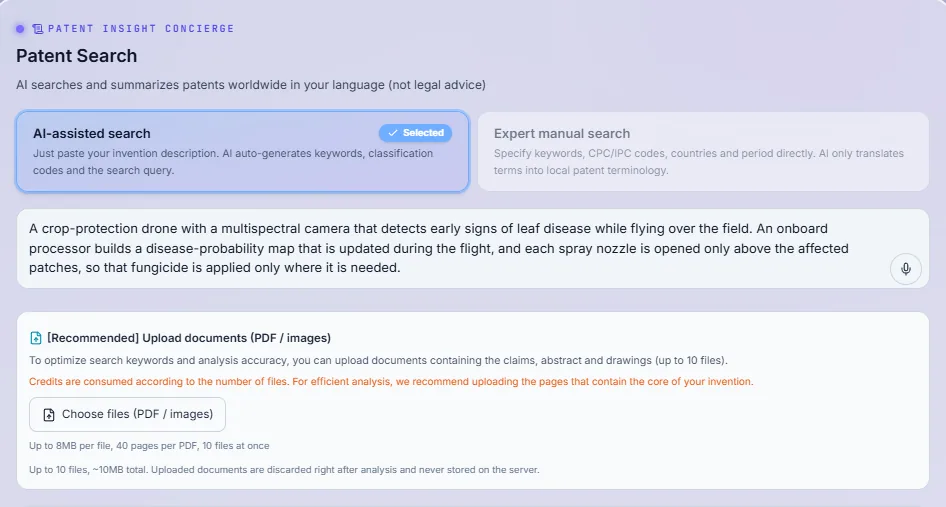
    Paste a description of the invention, or use expert mode with your own keywords and classification code. You can also load PDFs or images of your documents.

    Describe the invention
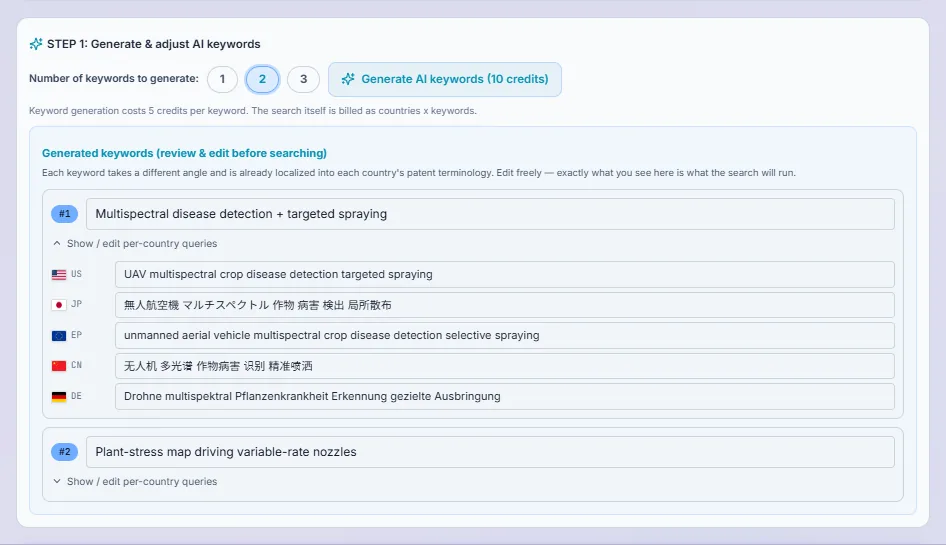
  2. Step 2

    Generate and check the queries

    Generate keywords with the AI and edit the query prepared for each office.

    Generate and check the queries
  3. Step 3

    Choose offices and period, then search

    Select up to eight offices (or the major-offices set) and a period, then run the patent search.

    Choose offices and period, then search
  4. Step 4

    Read the details

    Check the hits per country and the comparison table. Open a translated detailed summary for any patent you want to study.

    Read the details

Points to note

  • Results are reference information, not an opinion on validity or infringement. Completeness is not guaranteed; consult a patent professional for decisions.
  • Zero hits for an office still counts as a completed scan of that office.

How credits are used

Credits are used for reading uploaded files (per file), generating keywords (per keyword), the search itself plus a scan per office, and each translated detail you open. The total is checked against your balance before it starts.

Guide range · per item
150–300 credits

CORPORATE INTELLIGENCE

Corporate Intelligence

What you can do

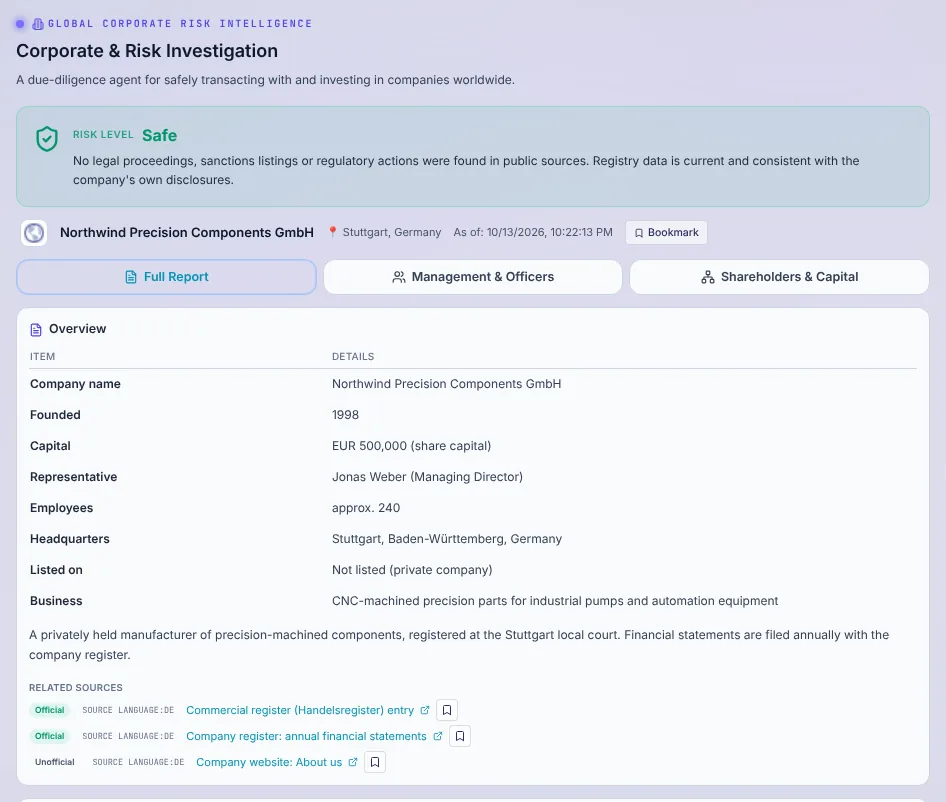
Check a company before you deal with it: basic facts, structure, legal trouble, misconduct and reputation, each with sources, plus an overall risk level and management and shareholder information.

How to use it

  1. Step 1

    Identify the company

    Enter the company name and country (region optional), or its official website, and search for candidates.

    Identify the company
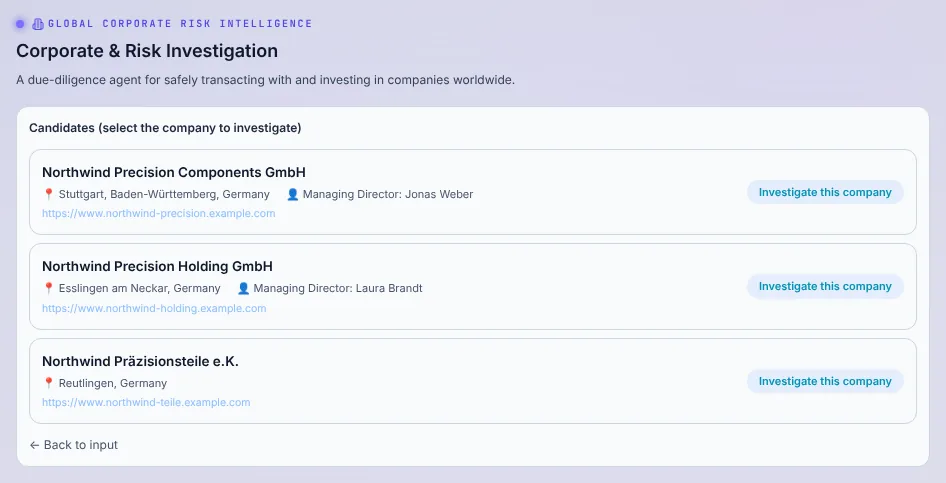
  2. Step 2

    Pick the right company

    Choose the correct company from the candidates.

    Pick the right company
  3. Step 3

    Run the detailed check

    Choose domestic or global scope and start the detailed check. Management and shareholder information follows automatically.

    Run the detailed check

Points to note

  • The report summarises public information. Check the original sources before making a decision.
  • Companies with the same name are common. Make sure you picked the right one before the detailed check.

How credits are used

A full check is made of three charged steps: identifying candidates, the detailed analysis, and the management and shareholder information that follows it.

Guide range · per item
200–500 credits

FINANCE & INVESTMENT

Finance & Investment

What you can do

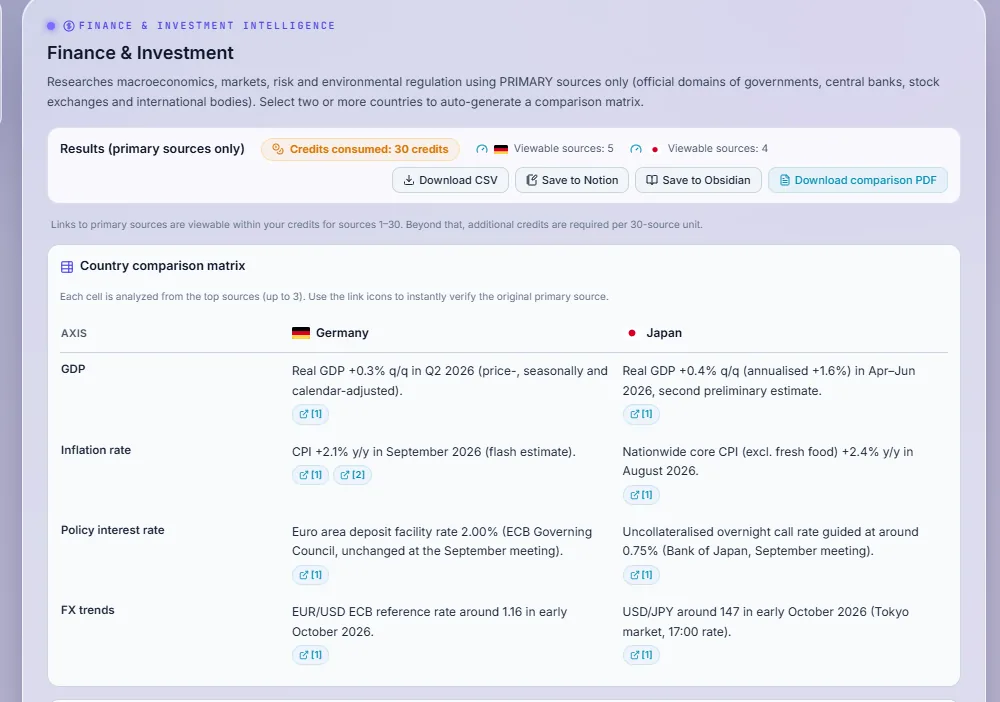
Gather official economic and market indicators for one to three countries, from official sources only, with a side-by-side comparison when you pick two or more.

How to use it

  1. Step 1

    Choose countries

    Select one to three countries.

    Choose countries
  2. Step 2

    Choose categories and period

    Pick the indicators you need (macro, market, risk, environment) and the period.

    Choose categories and period
  3. Step 3

    Search official sources

    Run the search. Results show each indicator with its source, and a comparison matrix for several countries.

    Search official sources
  4. Step 4

    Go further

    Analyse more sources, export to CSV or a comparison PDF, or open a source in the reader.

    Go further

Points to note

  • Figures are reference information, not investment advice. Check the latest figures at the source.

How credits are used

Credits are used per country you select. Each time you analyse more sources, credits are used again for each country.

Guide range · per query
200–400 credits

REAL ESTATE INVESTMENT

Real Estate Investment

What you can do

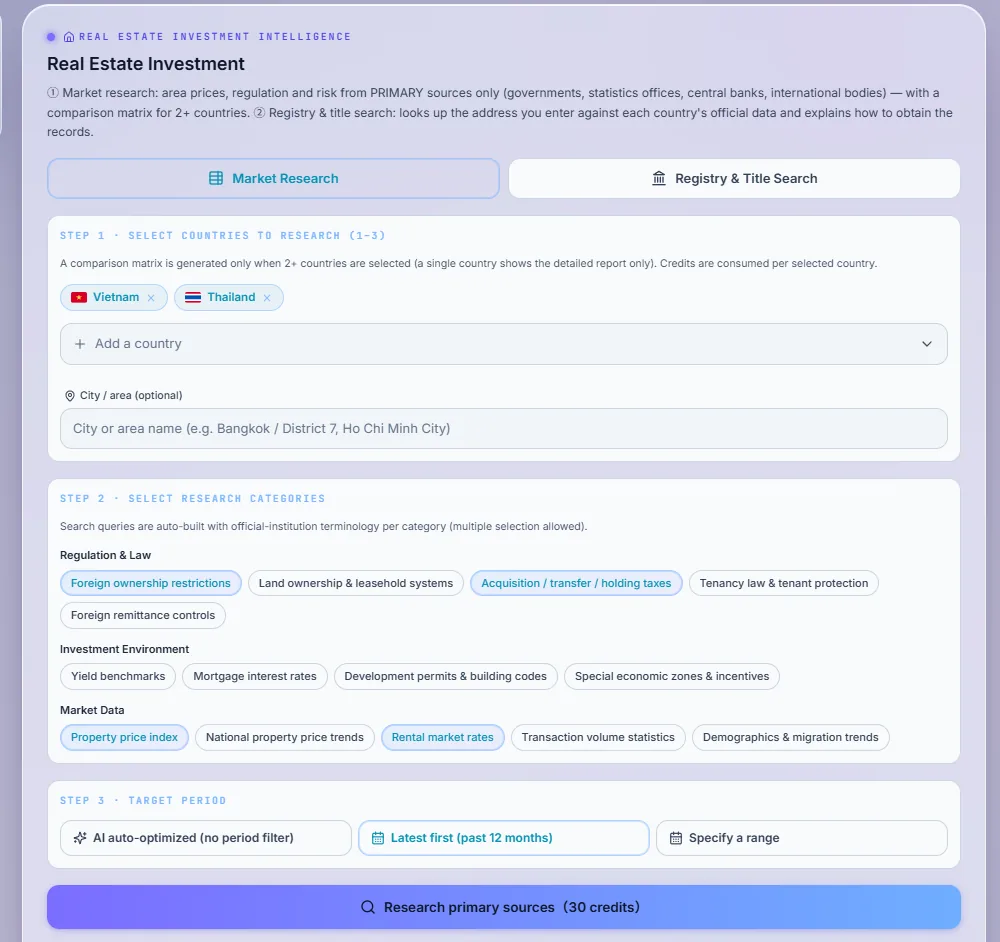
Research real estate rules and market data (foreign ownership, tax, yields, prices and more) for one to three countries, and look up official registry information or an access guide for an address.

How to use it

  1. Step 1

    Market research: choose countries and topics

    Select one to three countries, an optional city, the topics and the period, then search official sources.

    Market research: choose countries and topics
  2. Step 2

    Registry lookup: check what the country offers

    Choose a supported country. What is available is shown before you search: transaction records, official address data, or a guide on how to obtain records.

    Registry lookup: check what the country offers
  3. Step 3

    Registry lookup: enter the address

    Enter the address in the local language or pick a point on the map, then run the lookup. The official response is shown as it is.

    Registry lookup: enter the address

Points to note

  • "No match" in a registry lookup can mean the address was entered differently from the official record.
  • Information is reference only, not investment advice.

How credits are used

Market research uses credits per country, and again per country each time you analyse more sources. A registry lookup uses credits per lookup; unsupported countries are refused before any charge.

Guide range · per item
200–400 credits

GOVERNMENT & INFRASTRUCTURE

Government & Infrastructure

What you can do

Find public infrastructure plans, tenders and projects in a country, from government and international-organisation documents, tagged by project phase.

How to use it

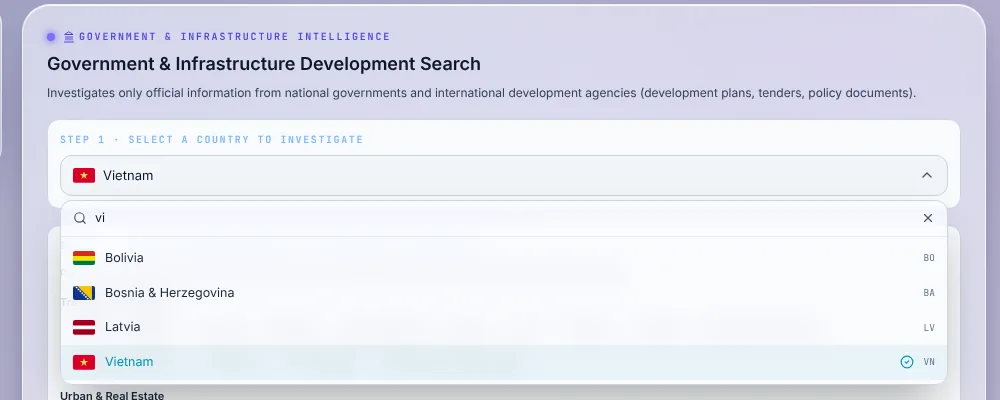
  1. Step 1

    Choose the country

    Select one country.

    Choose the country
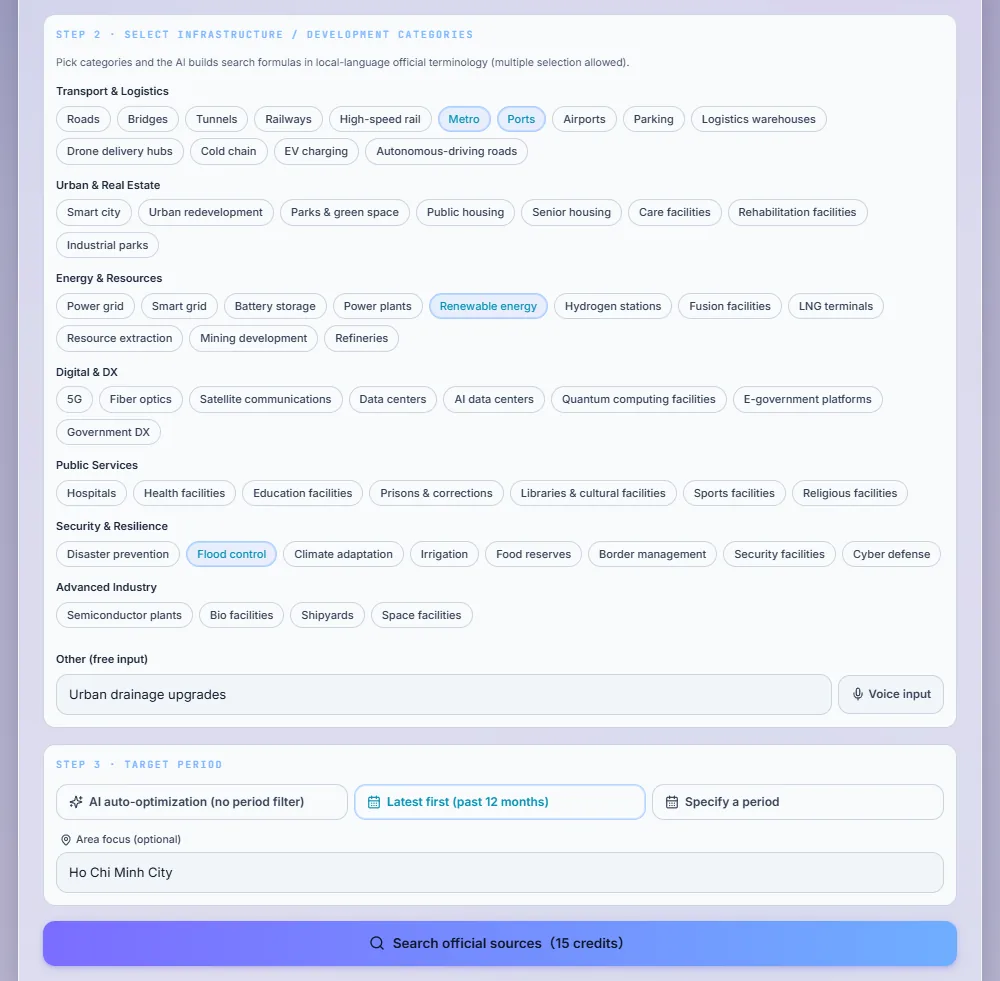
  2. Step 2

    Choose sectors and period

    Pick sectors from the groups or type your own, add an area if you like, and choose the period.

    Choose sectors and period
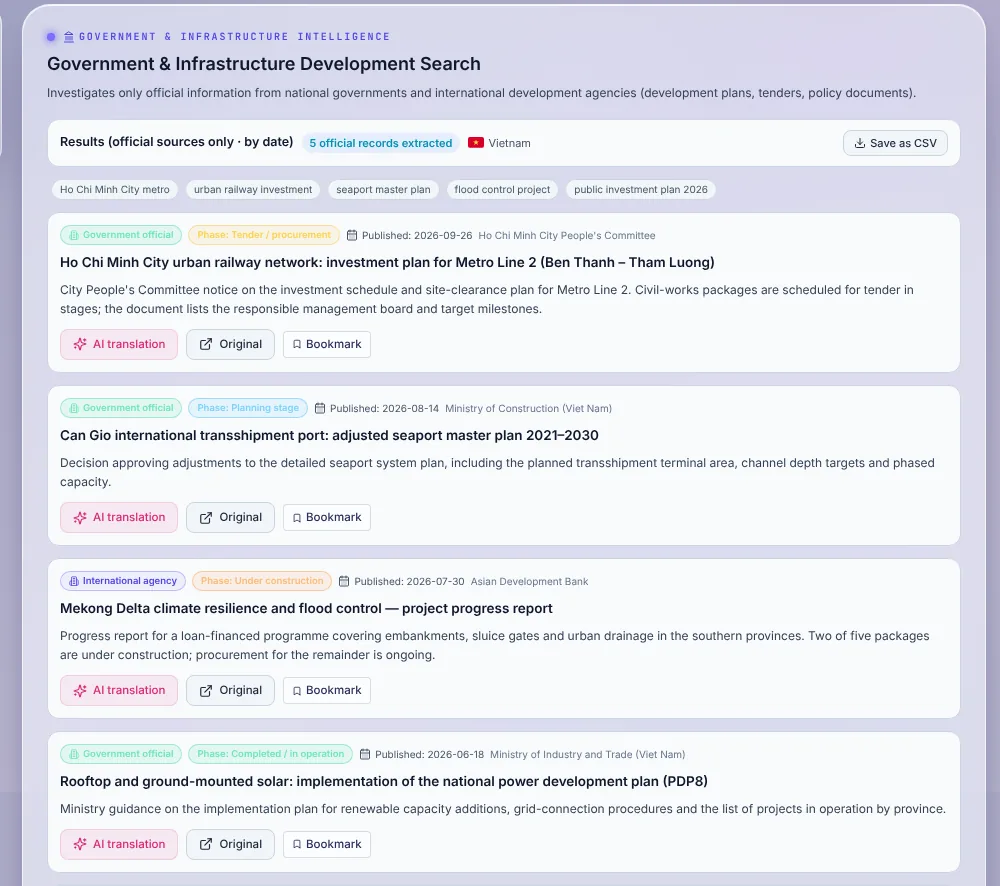
  3. Step 3

    Search and read

    Run the search. Documents are listed by date with their phase (planning, tender, construction, operation), and can be opened in the reader.

    Search and read

Points to note

  • Only public sources are searched. Check tender conditions and deadlines in the original document.

How credits are used

Credits are used once per search.

Guide range · per query
100–200 credits

TRADE & COMPLIANCE

Trade & Compliance

What you can do

Check the tariffs, regulations, documents and certifications needed to import a product into a country, and screen a business partner against public sanctions lists.

How to use it

  1. Step 1

    Trade check: product and destination

    Enter the product name and/or HS code, the origin (optional) and the destination, then run the check.

    Trade check: product and destination
  2. Step 2

    Read the verdict and preparations

    You get an overall verdict, what to prepare, warnings, and sources for tariffs, regulations, documents and certifications.

    Read the verdict and preparations
  3. Step 3

    Partner screening

    On the screening tab, enter the company name, country and other details, and check it against sanctions lists.

    Partner screening

Points to note

  • "No match" in screening covers only the public lists that were checked.
  • Confirm final requirements with the authorities or a customs professional.

How credits are used

Credits are used once per run, at the same price on either tab.

Guide range · per item
150–300 credits

GLOBAL SALES CHANNEL SEARCH

Global Sales Channel Search

What you can do

Find distributors, buyers or trade events in a country for your product, with company summaries and source links.

How to use it

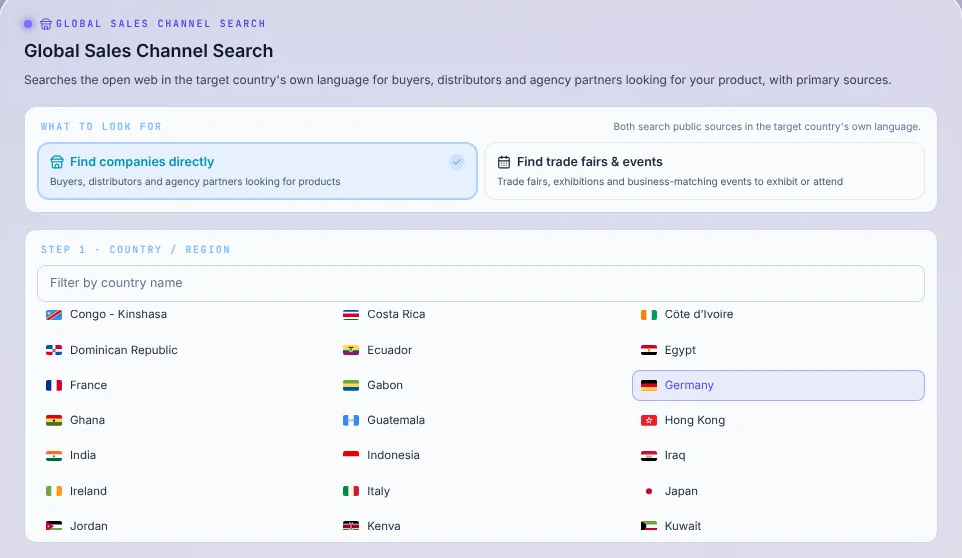
  1. Step 1

    Choose the country and target

    Select one country, then choose whether to look for companies or for trade events.

    Choose the country and target
  2. Step 2

    Describe what you are looking for

    Let the AI set the search or enter it yourself, describe your product, and add words to exclude if needed.

    Describe what you are looking for
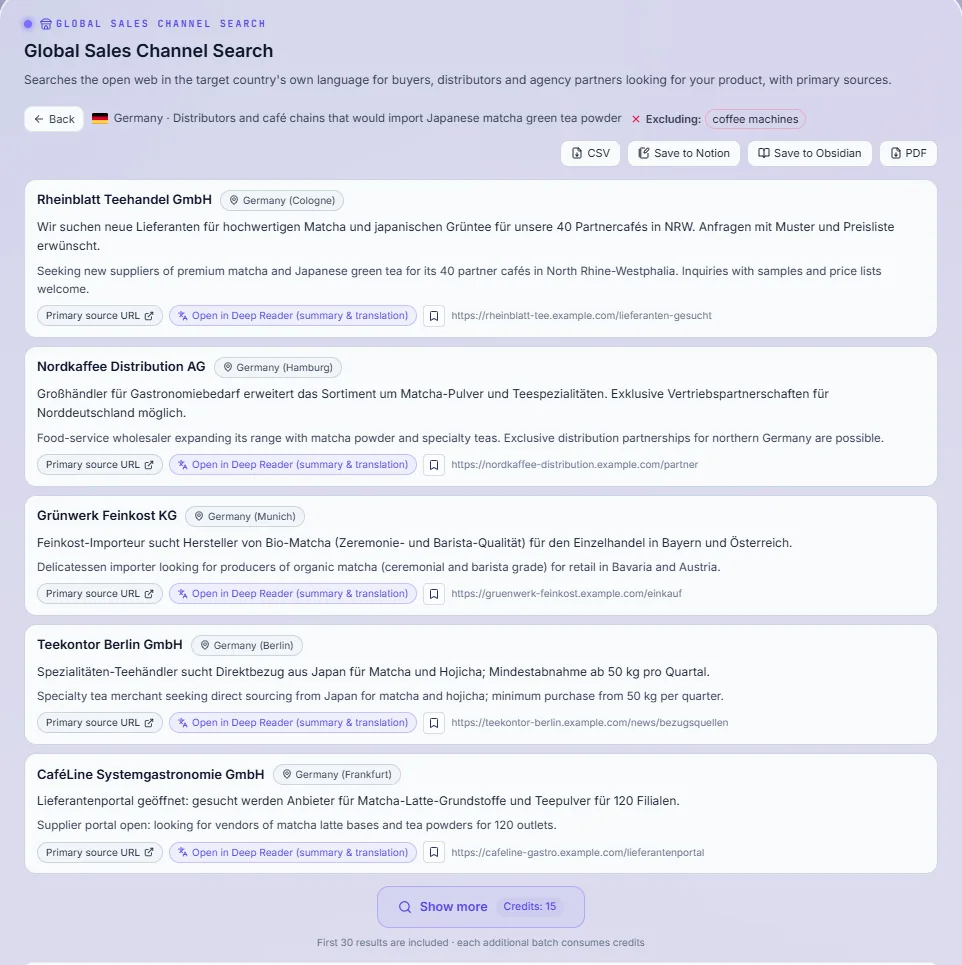
  3. Step 3

    Search and go further

    Run the search, then show more results, open a page translated in the reader, or export to CSV or PDF.

    Search and go further

Points to note

  • Check each company's details on its own website before you contact it.

How credits are used

Each search uses credits. Showing more results is charged as another search each time.

Guide range · per query
150–300 credits

OEM & MANUFACTURING SOURCING

OEM & Manufacturing Sourcing

What you can do

Find manufacturers and OEM partners in a country, with summaries, minimum order quantities where published, and source links.

How to use it

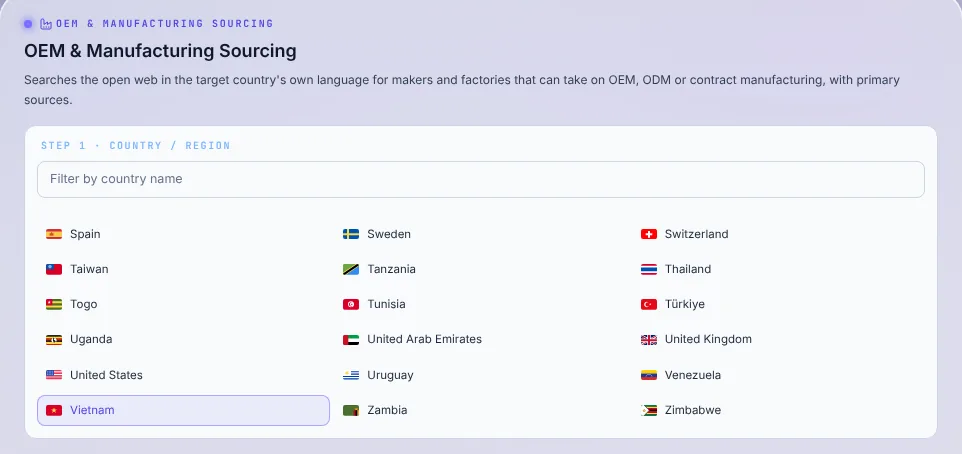
  1. Step 1

    Choose the country

    Select one country.

    Choose the country
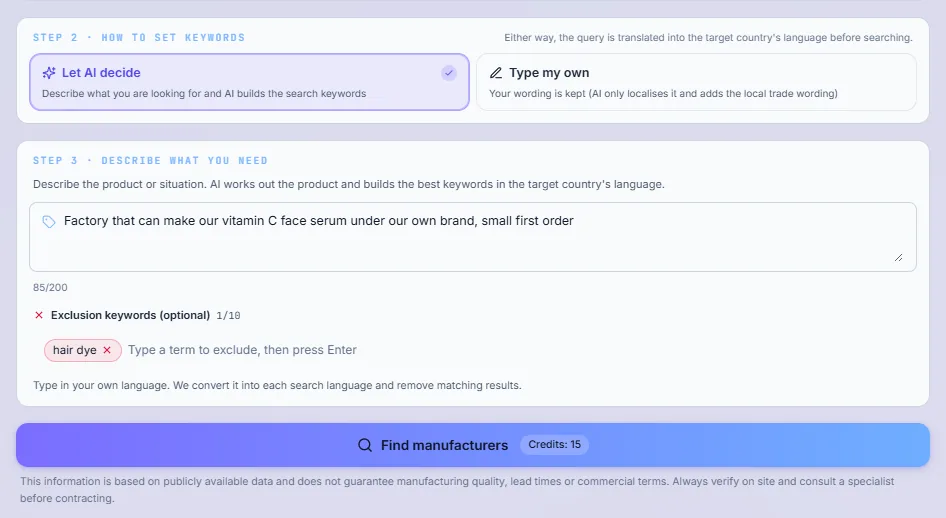
  2. Step 2

    Describe what you need made

    Let the AI set the search or enter it yourself, describe the product, and add words to exclude if needed.

    Describe what you need made
  3. Step 3

    Search and go further

    Run the search, then show more results, open a page translated in the reader, or export to CSV or PDF.

    Search and go further

Points to note

  • Searching across all periods tends to find more manufacturers.
  • Confirm capabilities and terms directly with each manufacturer.

How credits are used

Each search uses credits. Showing more results is charged as another search each time.

Guide range · per query
150–300 credits

VETERINARY INTELLIGENCE

Veterinary Intelligence

What you can do

Veterinary Intelligence is a set of four reference tools for veterinary professionals: Clinical Analysis (match findings against the literature), Allergy History & Detailed Analysis (compare allergy history with current food and medicines), Drug, Supplement & Food Cross-Check (check one product against ingredients to avoid) and the Epidemic Map (zoonosis risk by area). None of them diagnoses; they help you find and check sources quickly. The final judgement is always the veterinarian's.

Before you start (common to all four tools)

  1. Step 1

    Open Veterinary Intelligence from Home

    After logging in, choose "Veterinary Clinical Intelligence" on the Home screen. The four tools are listed there, and you can switch between them from the side menu at any time.

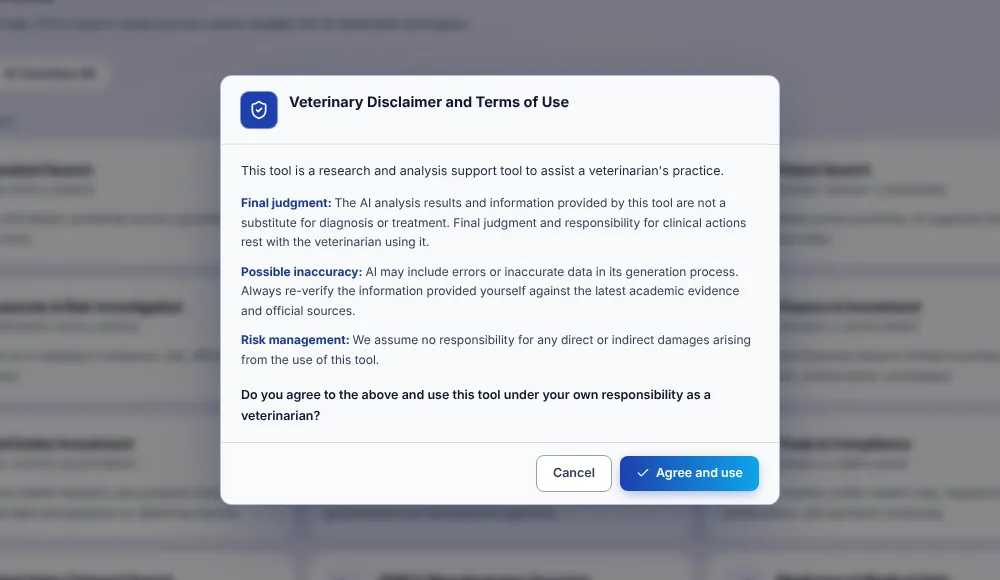
  2. Step 2

    Agree to the professional-use terms (first time only)

    The first time you open a tool, the terms for veterinary professionals are shown. Read them and press "Agree and use". The tools are for use under a veterinarian's responsibility.

    Agree to the professional-use terms (first time only)
  3. Step 3

    Choose the tool that fits your question

    Use the table below to pick a tool. Each tool shows the estimated credits before you run it, and nothing is charged until you press the run button.

Which tool should I use?

Each tool answers a different question. Start with the one that matches what you want to know, and combine them if needed: for example, check candidates with Clinical Analysis and then check the drug you plan to use with Drug, Supplement & Food Cross-Check.

CLINICAL ANALYSIS

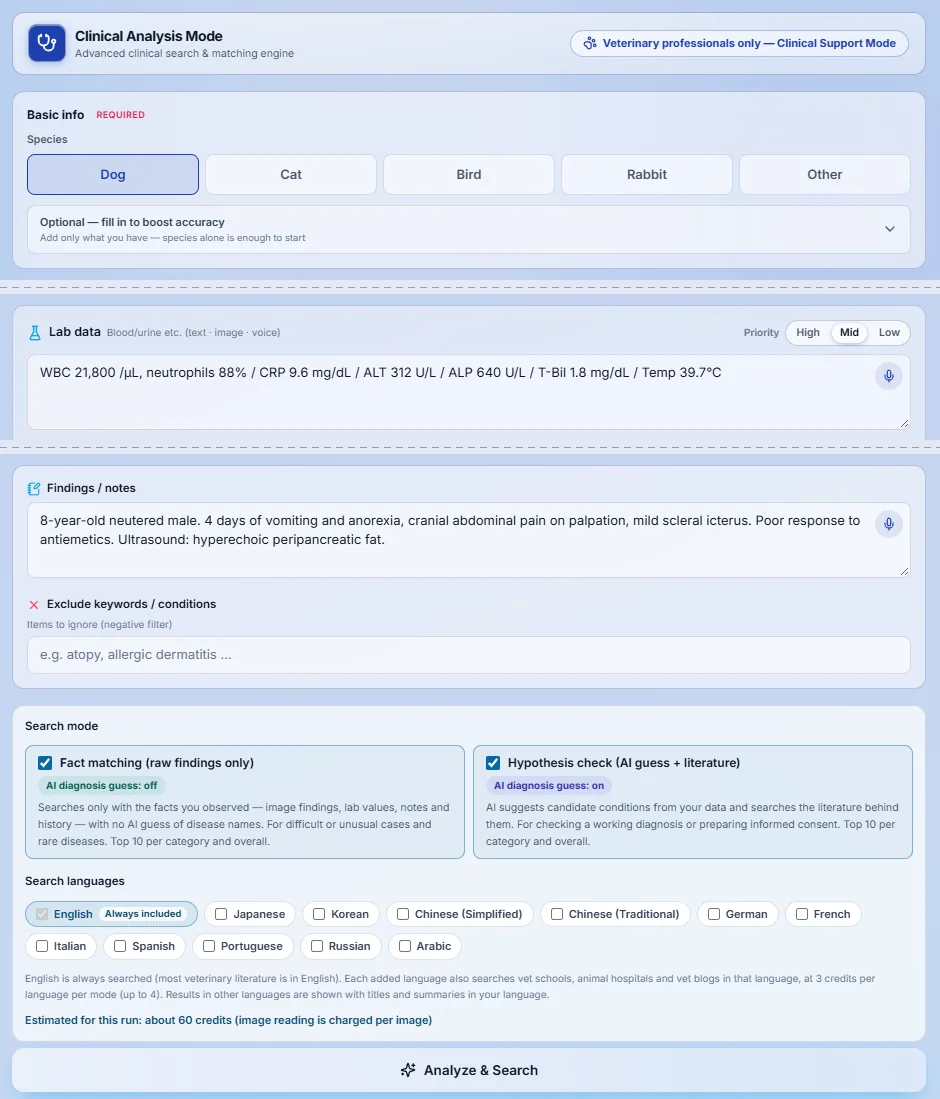
Clinical Analysis

Use it when: You want to know which conditions the literature links to the findings, lab values or images in front of you.

Enter the species and what you have observed: findings, history, lab values, and photos or diagnostic images if they help. We match them against veterinary literature and reported cases worldwide, and list candidates with the number of retrieved documents that support each one, so you can open and check every source.

How to use it

  1. 1Choose the species. Breed, age and other details are optional, and fields you leave blank never influence the result.
  2. 2Enter lab values and findings as text or by voice, and add lesion photos or diagnostic images if useful.
  3. 3Choose fact matching (searches only with what you observed, with no guess of disease names), hypothesis checking (suggests candidate conditions and searches the literature behind them), or both.
  4. 4Add search languages if needed, check the estimated credits, and run. Results show candidates by overlap of documents, plus matching pages from trusted veterinary institutions.

How credits are used: Credits are used per run for each mode you choose, with a small addition for each extra search language. Reading photos or images is charged per image. The estimate is shown before you run, and a mode that fails on our side is refunded automatically.
Clinical Analysis

ALLERGY CHECK

Allergy History & Detailed Analysis

Use it when: An animal with known allergies shows symptoms and you want to see whether its current food, supplements or medicines contain the same ingredients.

Compare an animal's past allergy history with what it eats or takes now, at the ingredient level. We extract the ingredients of each product and show which ones overlap with the history, with a risk evaluation, comparison charts and reference notes from the literature. Enter a product name and ingredients are searched from pet foods, treats, supplements and therapeutic diets in 37+ countries; products not found are supplemented by a web search. All information used for the check is shown with its source. For a product whose ingredients could not be found, you can request it be added via “Request this product to be added” (up to 5 per day). History of additives and synthetic ingredients is also checked, down to whether it is the same substance or a relative with reported cross-reactivity.

How to use it

  1. 1Choose the species (required) and, if you like, breed, age and sex.
  2. 2Add the past allergies, or load past data from a CSV file.
  3. 3Add the current food, supplements and medicines: type the product name, or photograph the ingredient label so it is read automatically. The maker's country is detected from the product name and can be changed by hand.
  4. 4Run the cross-check. You get a comparison of history and current intake, a risk evaluation, the ingredients found in each product and a timeline of ingredients carried over.

How credits are used: Each cross-check uses credits once. Reading an ingredient label from a photo is charged per photo.

Allergy History & Detailed Analysis

DRUG & SUPPLEMENT CROSS-CHECK

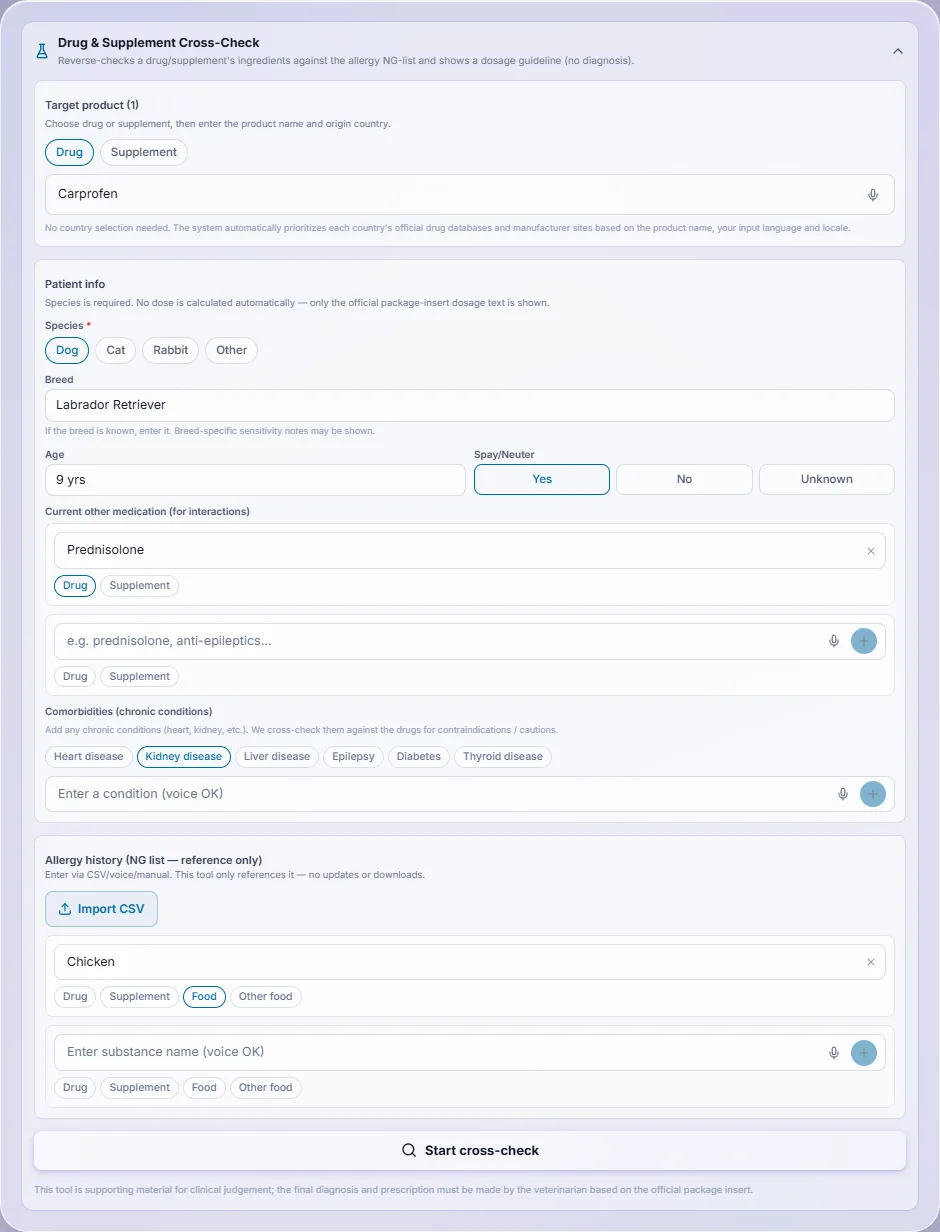
Drug, Supplement & Food Cross-Check

Use it when: Before giving a specific drug, supplement or food (including therapeutic diets), you want to check interactions with the animal's other medicines, cautions for its conditions and any overlap with its allergy history.

Before giving a drug, supplement or food (including therapeutic diets), check it against that animal's details: species, other medicines it is taking, chronic conditions and allergy history (NG list). We extract its ingredients and show interactions with the other medicines, side effects, cautions for the conditions, any overlap with the allergy history, alternatives to compare, and the dosage text from the official package insert with its source. Doses are never calculated automatically. For a product whose ingredients could not be found, you can request it be added via “Request this product to be added”. Allergy history to additives and synthetic ingredients is also covered.

Where the information comes from

First, we search official medicine databases from regulators in Japan, the United States, the EU and other countries, and use the original package insert text (ingredients, dosage, side effects, interactions and contraindications). If your country has no record of that drug, we use another country's official record. Supplements and foods that are not in the database are covered by searching the web. The information used for the check is always shown with its source. Related literature is shown with titles and sources, and a dose is shown only when it has a source. This is a different feature from Medicines & Medical Data Search: it focuses on checking one product against that animal's details (species, other medicines, conditions and allergy history).

How to use it

  1. 1Choose drug, supplement or food (including therapeutic diets) and enter the product name. You do not need to choose a country: the official databases of each country are prioritised automatically.
  2. 2Enter the patient details: species is required; breed, age and spay/neuter status are optional.
  3. 3Add any other medicines the animal is taking and its chronic conditions (heart, kidney or liver disease, etc.), and enter the allergy history (NG list) by hand, by voice or from a CSV file.
  4. 4Agree to the disclaimer and start the cross-check. Results show the risk level, interactions, side effects, cautions for the conditions, alternatives and the dosage text with its source, and can be downloaded as a PDF.

How credits are used: Each cross-check uses credits once. Results are not stored on our servers, so keep them by downloading the PDF.

Drug, Supplement & Food Cross-Check

EPIDEMIC MAP

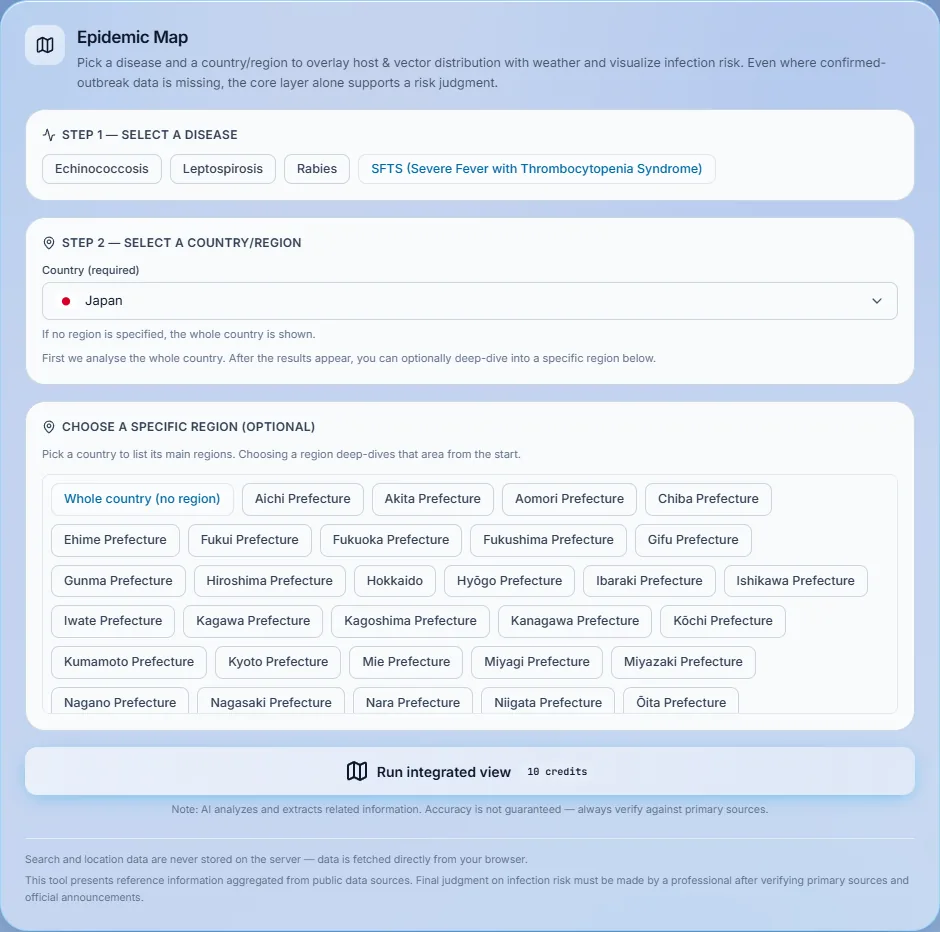
Epidemic Map

Use it when: You want to know the infection risk of a zoonosis in a particular country or region, for example before travel or when an animal arrives from abroad.

Choose a disease and a country or region to see infection risk on a map. We overlay where host animals and carriers such as ticks and mosquitoes are found with weather conditions and, where available, reported cases. Even where confirmed-outbreak data is missing, the risk can still be judged from these core layers, with the source of each figure shown.

Diseases currently covered

  • Rabies
  • Leptospirosis
  • Echinococcosis
  • SFTS (severe fever with thrombocytopenia syndrome)

How to use it

  1. 1Select a disease.
  2. 2Select a country, and a region or city if you want a closer look. Without a region, the whole country is shown.
  3. 3Run the analysis to see the integrated view: the risk level, the layers on the map and how the score was derived, explained in your language.
  4. 4Export the data if you need it.

How credits are used: Each analysis uses credits once. Choosing the disease and area, moving around the map and exporting data use no credits.

Epidemic Map

Also useful: Medicines & Medical Data Search

MEDICINES & MEDICAL DATA

Medicines & Medical Data Search

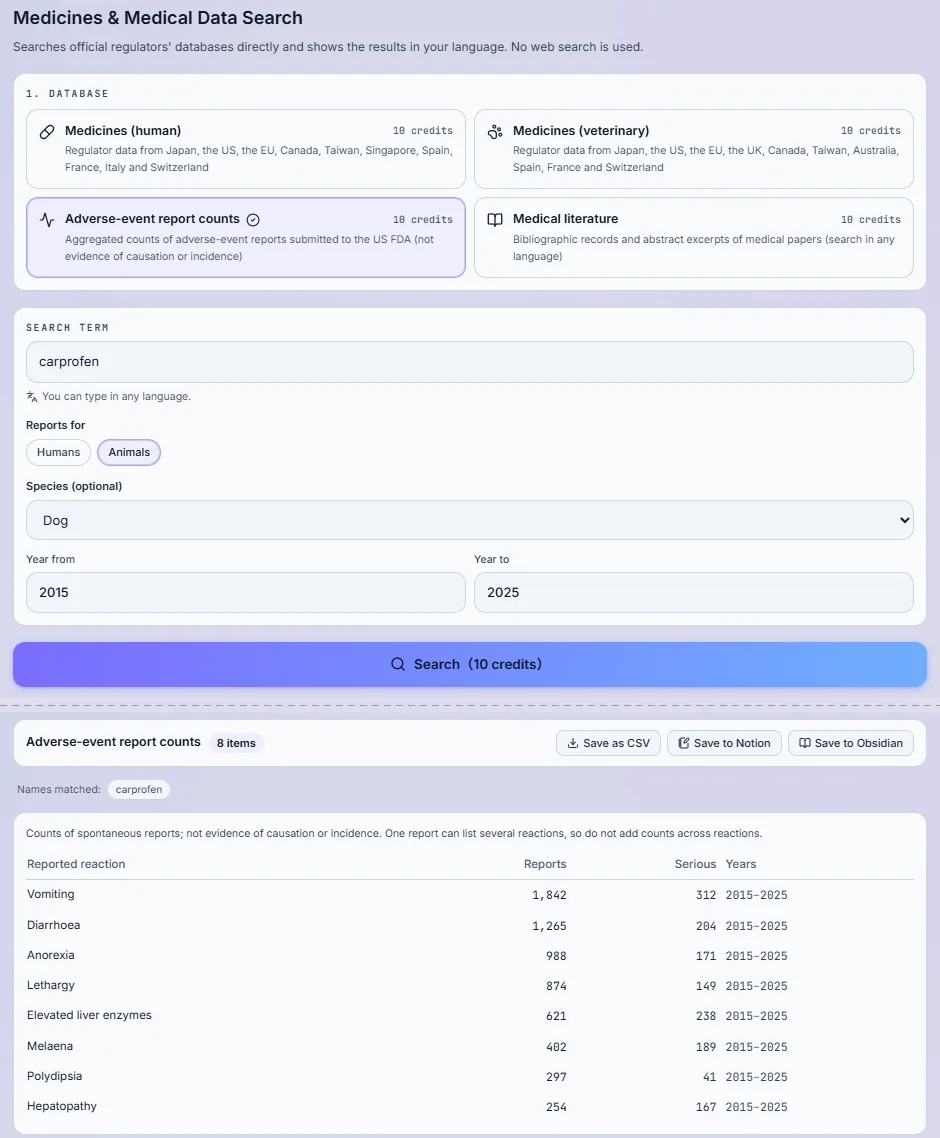
Use it when: You want the official package insert of a drug, the number of adverse-event reports, or medical papers.

A separate search, available to all members, that looks directly in official regulators' databases rather than the web: medicines for humans, veterinary medicines, adverse-event report counts and the medical literature. You can type the search term in any language, and results are shown in your language.

How to use it

  1. 1Open "Medicines & Medical Data" from Home and confirm the notes on use.
  2. 2Choose the database: human medicines, veterinary medicines, adverse-event report counts or medical literature.
  3. 3Enter the drug or ingredient name in any language, and narrow down by species or years if needed.
  4. 4Run the search. You can open the full package insert of a result or save the list as CSV.

How credits are used: Each search uses credits once, including translation into your language. Loading more results and opening a full package insert are charged separately. Report counts are not causation or incidence rates.

Medicines & Medical Data Search

Points to note

  • These tools support a professional's judgement and do not diagnose. The final decision is always the veterinarian's.
  • Finding no data does not mean low risk. It means the item is not listed in the sources checked.
  • Adverse-event counts are not causation or incidence rates.

How credits are used

Each tool uses credits per run, and the estimate is shown before you run it. Clinical Analysis adds credits for each mode and extra search language you choose; reading photos is charged per image. A run that fails on our side is refunded automatically. Choosing options, moving the map and exporting data use no credits.
Guide range · per item
200–500 credits

Use these searches from your AI tool

If you use an AI assistant or code editor every day, you can connect it to Factdock and ask it to run Factdock searches for you. This section explains what that means, what you can do, and how to set it up step by step.

What is the personal API (MCP)?

MCP is a common way for AI tools to use outside services as "tools". Once you connect your AI tool to Factdock, you can simply ask it in plain words, such as "Look up the latest official guidance on this regulation in three countries". The AI tool then runs the right Factdock search on your behalf, receives the results with their sources, and uses them in its answer. You do not need to open the Factdock app or copy results across.

  • The same searches as in the app: web, academic papers, patents, companies, trade, finance, real estate, infrastructure, contracts, medical databases, veterinary tools and Global Insights.
  • Results come back with source links, translated into the language your AI tool asks for.
  • Credits are used at exactly the same price as in the app. There is no separate API fee.

What you need

  • A Factdock account on a paid plan (the personal API is not available on the free state or before signing up).
  • An AI tool that supports MCP: an AI assistant app with custom connectors, a code editor with MCP settings, or a command-line AI tool.
  • A few minutes. You do not need to write any code.

What you can ask: examples

Ask in your own words. Adding "with Factdock" makes it clear which tool the AI should use. Text only: features that need a photo or a file are available in the app.

  • Web

    With Factdock, find the official announcements in Germany and France about the EU battery regulation and summarise them in English.

  • Academic papers

    Find papers from the last five years on diagnostic markers for pancreatitis in dogs.

  • Patents

    Search the Japanese, US and European patent offices for patents on solid electrolytes for batteries.

  • Companies

    Identify this company in Vietnam and create a risk report on it.

  • Trade

    Check the tariffs and regulations for exporting this part from Mexico to the United States.

  • Sales channels and manufacturers

    Find importers of pet food in Thailand, and manufacturers that can make stainless steel bottles as OEM.

  • Medical and veterinary

    How many adverse-event reports in dogs are there for carprofen? Show the package insert as well.

  • Global Insights

    Show me today's Global Insights headlines in the veterinary field.

How to connect: choose one of two ways

Which way to use depends on your AI tool. If your tool can add a connector by URL with a login, use the login connection. If it asks for an API key in its settings, use a personal API key. Either way, the address to connect to is https://fact-dock.com/mcp.

Way A: login connection (no key needed)

For AI apps that support login connections (OAuth) when adding a custom connector.

  1. Step 1

    Open the connector settings of your AI app

    In your AI app's settings, open the screen for adding a connector (it may be called "custom connector", "apps and connectors" or similar). Some apps require developer mode to be turned on first.

  2. Step 2

    Enter the connection address

    Enter https://fact-dock.com/mcp as the URL. If you are asked for an authentication type, choose OAuth.

  3. Step 3

    Log in to Factdock and allow the connection

    A Factdock screen opens (log in if asked). Check the name of the app requesting access and what it will be able to do, tick the box to agree to the personal API terms, and press "Allow". You are then returned to your AI app.

Way B: personal API key

For code editors and command-line AI tools where you write the connection in a settings file or command.

  1. Step 1

    Open the "API integrations" page

    Log in to Factdock, open the account menu at the top right and choose "API integrations".

  2. Step 2

    Issue a new API key

    Under "Issue a new API key", give the key a name you will recognise (for example, the PC and tool you use), choose how long it should be valid (30 days, 90 days, 1 year or no expiry), tick the box to agree to the personal API terms, and press "Issue key".

  3. Step 3

    Copy the key and keep it safe

    The key is shown only once. Copy it and store it somewhere safe, such as a password manager, then confirm that you have saved it. We cannot show it again; if you lose it, revoke it and issue a new one.

  4. Step 4

    Paste the setting example into your AI tool

    The same page has ready-to-copy setting examples for commonly used AI tools. Copy the one for your tool, replace YOUR_API_KEY with your key, and paste it into your tool's MCP settings (or run the command shown). Then restart the tool.

After connecting: try it

  1. Step 1

    Check that Factdock appears

    In your AI tool's list of connectors or tools, check that Factdock is shown and turned on. Showing the list of tools uses no credits.

  2. Step 2

    Ask a question

    Ask in plain words, for example one of the questions above. Your AI tool may ask for your permission before running a search; each search it runs uses credits.

  3. Step 3

    Check the results and sources

    Open the source links in the answer to check the original information. You can see the credits used and your balance in the Factdock app.

Managing keys and connections

  • The "API integrations" page lists your keys with their status (active, expired or revoked) and the apps connected by login.
  • Press "Revoke" on a key or "Disconnect" on an app to stop it immediately. A revoked key cannot be used again.
  • If you think a key has leaked, revoke it at once and issue a new one.
  • When your paid plan ends, all keys and connections stop working.

Points to note

  • For your own use and your own organisation's internal work only. Building it into services for third parties, redistributing or reselling the data is not allowed.
  • Text only. Features that need a photo or a file (such as image matching or reading a label) are available in the app.
  • Results are reference information, not legal, medical, veterinary, financial or investment advice. Finding no data does not mean safe or low risk.
  • To prevent runaway use, calls are limited per account (5 per minute, 60 per hour and 300 per day), the same call repeated in a short time is stopped, and there is a daily cap on the credits that can be used through the API.

How credits are used

Each search uses credits at the same price as in the app; searches charged per country or per page in the app are counted the same way. Connecting, listing the tools and checking the connection are free. Global Insights calls use no credits and are available within your plan's monthly call limit. If your balance is too low, the search does not start, and a search that fails on our side is refunded automatically.
If it doesn't work

It says I'm not eligible, or the connection is refused.
The personal API is available only on a paid plan. Check your plan in the app. If you are on a paid plan, check that the key is active (not expired or revoked) and that it was pasted in full, with no extra spaces.
Factdock does not appear in my AI tool.
Restart the tool after changing its settings. Check that the address is exactly https://fact-dock.com/mcp and that the setting was pasted in the right place, following the example for your tool on the "API integrations" page.
A search stopped with a message about limits or credits.
You have reached the per-minute, per-hour or daily limit, or your credit balance is too low. Wait a while before trying again, or top up your credits. Calls refused by a limit use no credits.
The results are in the wrong language.
Tell your AI tool which language you want, for example "Answer in English". Search results are translated into the language the AI tool requests.

Business API (REST and MCP) for engineers

How to build Factdock's primary-source data into your own systems and in-house AI agents: sign-up, authentication, endpoints, MCP setup, limits, credits and error handling.

What the Business API is

A separate contract for companies and developers. You call it over HTTPS (REST) or register it as an MCP server, using a dedicated business API key. Unlike the personal API, you may build it into your own products and services.

  • Data: approved human and veterinary medicines, adverse-event report counts, official announcements and regulatory news (Insights), and scientific literature. Every record comes with its source URL and licence.
  • Prepaid API credits, separate from the credits of an app plan. No monthly fee.
  • Responses are JSON. Titles and summaries can be returned in the language you specify.

Getting started

  1. Step 1

    Create an account

    Sign up with your work email address.

  2. Step 2

    Choose “For businesses & developers”

    On the first screen after sign-up, choose the business option instead of a personal plan.

  3. Step 3

    Enter company details and accept the API Terms

    Company name, purpose of use and agreement to the API Terms of Use. Your first API key is shown once at this point — copy and store it safely.

  4. Step 4

    Buy an API credit pack

    Your registration is complete with the first purchase. The pack you buy also sets your speed (calls per minute).

  5. Step 5

    Issue and manage keys on the developer page

    You can issue up to 10 active keys (for example one per environment) and stop any key at any time. A key is shown only once.

  6. Step 6

    Confirm the medicines-data notice (only if you use it)

    Before calling medicines or adverse-event data, confirm once on the developer page that results are reference information and that final decisions are made by a qualified professional. Until then those calls are refused without using credits.

Authentication

Send your key in the Authorization header as a Bearer token on every request. Keep keys on the server side — never put them in browser or mobile app code. If a key may have leaked, stop it on the developer page and issue a new one.

Authorization: Bearer YOUR_API_KEY

REST endpoints

All endpoints are GET requests under the base URL below. Parameters are passed as a query string.

https://data.fact-dock.com
GET /v1/search
Search primary sources across fields (q, domain, country, lang, since, limit up to 50, offset).
GET /v1/insights
Newest Insights items (category, country, lang, since, limit, offset).
GET /v1/drugs/search
Search medicines by product name, generic name or active ingredient in any language (q, country, species, target = human or animal, limit up to 20, offset).
GET /v1/drugs/{id}
One medicine record by the id from the search: indications, dosage, contraindications, precautions and other label sections.
GET /v1/adverse-events
Aggregated adverse-event report counts for an active ingredient (ingredient, species, source, year_from, year_to, limit up to 50).
GET /v1/insights/search
Search Insights by keyword (q, country, category, since, lang, limit, offset).
GET /v1/literature
Search scientific literature (q, year_from, year_to, species_hint, limit, offset).

lang takes a language code such as en, ja or zh-TW. Only titles and summaries are translated (by machine translation, marked as such); the original text and the source URL are always included.

curl -H "Authorization: Bearer YOUR_API_KEY" \n  "https://data.fact-dock.com/v1/drugs/search?q=carprofen"

Search engines (the same as the app)

Besides the data endpoints above, the API runs the same search engines as the Factdock app: web, academic, patent, company, sourcing, finance, government and infrastructure, real estate, trade compliance, legal, medical database, veterinary clinical tools and the epidemic map. Each operation uses API credits at the business price shown on the developer page.

  • GET /v1/engines lists the tools and their input schemas (free). POST /v1/engines/{tool} runs one, with the arguments as a JSON body. Over MCP, the same tools appear in tools/list next to the data tools.
  • How many engine calls can run at the same time depends on the pack you purchased most recently (shown on the pricing and developer pages), and one call can take up to about 3 minutes. Results are in the language you pass in lang.
  • API credits are reserved before each call and only the amount actually used is charged; the rest is returned at once. Failures on our side are refunded automatically.
  • Rabies data and data for China are not available through the API. The medical database, veterinary clinical tools and epidemic map need the confirmation on the developer page.
curl -X POST "https://data.fact-dock.com/v1/engines/web_search" \n  -H "Authorization: Bearer YOUR_API_KEY" -H "Content-Type: application/json" \n  -d '{"query": "carprofen dog adverse events", "lang": "en"}'

Connecting an AI agent over MCP

For in-house AI agents and MCP-compatible clients. The MCP server provides the same data as REST, as tools: search_drugs, get_drug, adverse_event_counts, search_insights and search_literature.

  1. Step 1

    Add the server to your client's settings

    Register the MCP address with the type “http” and the Authorization header, as in the example below. The exact place to paste it depends on your client.

  2. Step 2

    Restart the client and check the tools

    After restarting, the Factdock tools appear in the tool list. Connecting and listing tools use no credits.

  3. Step 3

    Ask your agent

    For example: “Search the adverse-event counts for carprofen in dogs and show the sources.” Each tool call uses credits like a REST call.

{
  "mcpServers": {
    "factdock": {
      "type": "http",
      "url": "https://data.fact-dock.com/mcp",
      "headers": {
        "Authorization": "Bearer YOUR_API_KEY"
      }
    }
  }
}

Speed and limits

  • Speed (calls per minute) and concurrency (search-engine calls running at the same time) follow the pack you purchased most recently, regardless of your balance. Buying a smaller pack after a larger one lowers them; credits you already have stay usable.
  • Each response carries X-RateLimit-Limit and X-RateLimit-Remaining headers. When you exceed the speed you get 429 with a Retry-After header (seconds).
  • The same call with the same parameters repeated a third time within 10 minutes is refused with 429 and uses no credits. Cache results on your side instead of repeating calls.
  • Each company has a daily cap on credits (100,000 by default). Contact us if you need a higher cap.
  • Request bodies are limited to 64 KB, and offset (paging depth) is limited, to prevent bulk extraction.

API credits

  • Each call uses the number of credits set for that endpoint; the current table is on the developer page. Connecting and listing tools are free.
  • Some packs add bonus credits. The per-call price is the same for every pack.
  • Purchased credits (including bonus credits) are valid for one year from your most recent purchase; each purchase extends the whole balance.
  • Input errors (422) are refunded automatically. When your balance is too low the call is refused with 402 and nothing is used.

Error codes

401
Missing, invalid, stopped or expired key.
402
Not enough API credits — buy a pack.
403
Not allowed for this key: the medicines-data confirmation has not been recorded yet, or a trial key called something other than Insights.
404
No record (for example an unknown id). This means “not covered”, never “safe”.
422
Invalid parameters. Credits are refunded.
429
Too fast, repeated identical call, or daily cap reached. Wait for Retry-After before trying again.

Points to note

  • Reselling or redistributing the data as it is, or offering it as a competing service, is not permitted.
  • Results are reference information, not medical, veterinary, legal or investment advice. An empty result does not mean low risk or safe.
  • Machine-translated fields may contain errors. Check names, doses and contraindications in the original text.

If it doesn't work

I get 401.
Check that the header is exactly “Authorization: Bearer” followed by the full key, with no extra spaces, and that the key has not been stopped. A trial key expires after its trial period.
Medicines endpoints return 403.
Record the medicines-data confirmation on the developer page once. Other endpoints work without it.
I get 429 even though I call slowly.
You may be repeating the same call with the same parameters, or you may have reached the daily cap. Cache results, and check your current speed on the developer page — it follows your most recent pack.
The MCP tools do not appear.
Restart the client after editing its settings, and check that the address and the Authorization header were pasted exactly as in the example.
Two things to try without signing up

Access the world's knowledge with Factdock

Not sure where to start? Go from the first step: try it, read, and once you're convinced, start with 50% off your first month.

See pricingCreate an account in a minute. All plans are 50% off for the first 30 days. A credit card is required to sign up.